
An SEO audit is a structured check of why a website isn’t getting found. Work through it in order: first make sure Google can crawl and index your important pages, then make sure those pages answer what searchers want, then build trust and authority. Most small-business sites can be audited in a morning with two free tools, Google Search Console and PageSpeed Insights.
Below are the 25 checks I use, where to look for each one, and the results from running them on my own site, 53marketing.com, including how I took its mobile speed score from 68 to 96.
Updated 14 October 2026: added screenshots and results from auditing 53marketing.com, links to Google’s documentation, and a before-and-after of fixing the homepage’s mobile speed.
What an SEO audit is (and isn’t)
An audit isn’t a score from an automated tool. Those scores are a useful starting point, but they can’t tell you whether your service page answers a customer’s questions or whether the right page is ranking. An audit is a practical review of how search engines reach, understand and value your site, and how real people experience it.
For most UK and Irish service businesses, the goal is more enquiries from the right areas, not just more traffic. So this checklist cares about calls, forms and bookings as much as technical tidiness.
Before you start: set a baseline
- Make sure you can log in to Google Search Console and your analytics (usually GA4).
- List your 5 to 10 most important pages: service pages, location pages and key guides.
- Note what counts as a lead: form submissions, phone clicks, bookings.
- Start a spreadsheet with columns for issue, evidence, impact, fix, owner, priority and due date.
The 25 checks at a glance
| Area | Checks | Where to look (free) | Fix first if… |
|---|---|---|---|
| Crawling and indexing | 1–7 | Search Console: Pages, Sitemaps, URL inspection | Important pages aren’t indexed |
| Structure and internal links | 8–11 | Your menu, a site crawl, Search Console: Links | Key services are hard to reach |
| Speed and mobile experience | 12–15 | PageSpeed Insights, your own phone | Pages are slow or awkward on mobile |
| On-page relevance | 16–20 | The pages themselves, Search Console: Performance | Pages appear in search but don’t get clicks |
| Local signals | 21–23 | Google Business Profile, your website footer | You serve customers in a set area |
| Authority and trust | 24–25 | Search Console: Links, your testimonials and case studies | The basics are already sound |
Crawling and indexing: can Google see your pages?
- Check the Page indexing report. In Search Console, open Indexing, then Pages. Look at why pages aren’t indexed. Patterns matter more than individual URLs.
- Confirm robots.txt isn’t blocking important areas. One wrong line can hide a whole section. See Google’s introduction to robots.txt.
- Spot-check key pages for “noindex”. A plugin setting or template change can quietly remove service pages from Google. Use the URL inspection tool in Search Console.
- Review canonical tags. A wrong canonical can tell Google to ignore a page in favour of another one. Google explains how it chooses canonical URLs.
- Find broken links and 404s. Fix links on your own pages first, then decide whether old addresses need redirecting.
- Check for redirect chains. One redirect is fine. Several hops in a row slow things down.
- Check your XML sitemap. It should only list pages you want indexed, not redirected or noindexed ones. See Google’s sitemaps overview.
Example: the Page indexing report for 53marketing.com
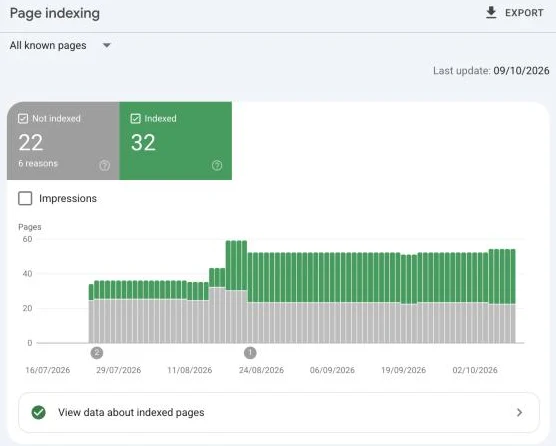
“22 not indexed” looks alarming, but most of it is expected. Here’s what each reason turned out to be when I clicked into it:
| Reason | Pages | What they were | Action |
|---|---|---|---|
| Page with redirect | 8 | Old addresses that now redirect, such as articles I merged into one guide | None: this is how redirects should look |
| Crawled – currently not indexed | 6 | Three RSS feeds, plus three old addresses that now redirect and haven’t been recrawled | None |
| Not found (404) | 3 | Pages deleted months ago | Check nothing still links to them |
| Discovered – currently not indexed | 3 | Pages Google knows about but hasn’t crawled, including my Google Ads guide | Improve the page and request indexing |
| Blocked by robots.txt | 1 | The WordPress admin area | None: it should be blocked |
| Duplicate, Google chose different canonical | 1 | A duplicate version of a page | Check the canonical tag |
The lesson: don’t try to get the “not indexed” number to zero. Check that every page you care about is in the indexed list, and that everything outside it is there for a reason. Google’s Page indexing report guide explains each status.
Structure and internal links: can people find what matters?
- Map your services. Each main service should have its own clear page that’s easy to find from the menu.
- Check click depth. If a service page takes four or five clicks to reach, it usually underperforms.
- Audit internal links to key pages. Your guides should link to the matching service pages with descriptive wording, not “click here”.
- Look for orphan pages. A page that nothing links to is unlikely to rank or convert.
Speed and mobile experience: does it load and work?
- Review Core Web Vitals. Run your key pages through PageSpeed Insights. You don’t need a perfect score, but slow pages lose enquiries.
- Test on your own phone. For local searches, mobile is usually where enquiries are won or lost. Can you call or fill in the form easily?
- Remove intrusive pop-ups and layout jumps. If content moves while it loads or a pop-up covers it, people leave.
- Check security. Every page should load over HTTPS, with no “not secure” warnings.
Example: PageSpeed Insights for 53marketing.com

Two things to notice. First, “No Data” next to real users: smaller sites often don’t have enough Chrome visitors for Google to report real-world speed, so you only get the lab test, which simulates a mid-range phone on a slow 4G connection. Second, the SEO score is 100 but performance is 68. A perfect SEO score in this tool only means the basic tags are in place; it isn’t a measure of how well you’ll rank.
My homepage didn’t jump around, but the main content was slow to appear on a throttled mobile connection: 6.8 seconds against Google’s target of 2.5. PageSpeed Insights pointed to render-blocking files, unused JavaScript and CSS, and two Google tag scripts weighing about 350KB between them.
What I changed
The site runs on WordPress with Elementor and the SpeedyCache plugin, so everything below was done through settings, with one small script. I made the changes one at a time and re-tested after each.
- Removed things visitors never use: WordPress’s emoji script, the admin icon font (dashicons) and an old jQuery compatibility script. That halved the size of the main stylesheet.
- Delayed the Google tags until the visitor’s first scroll, tap or keypress, or ten seconds, whichever comes first. The consent defaults still run straight away, so tracking still respects cookie choices. The score went from 65 to 89.
- Delayed the rest of the page’s scripts the same way, apart from the cookie banner. On its own this broke the mobile menu and sticky header, so I added a short script that makes Elementor wait until all its files have loaded. The score went to 96–98.
I also tried SpeedyCache’s “critical CSS” feature, which is meant to load only the styles needed for the top of the page first. On this site it doubled the page size, so I switched it off. It’s a good example of why you should check the page after every change, not just the score.
| Measure | Before | After | Google’s “good” threshold |
|---|---|---|---|
| Performance score | 68 | 96 | 90 or more |
| Largest Contentful Paint (main content visible) | 6.8 s | 2.2 s | 2.5 s or less |
| Total Blocking Time (lab stand-in for responsiveness) | 220 ms | 0 ms | Under 200 ms in Lighthouse* |
| Cumulative Layout Shift (content jumping) | 0 | 0 | 0.1 or less |
| First Contentful Paint | 2.0 s | 1.8 s | 1.8 s or less |
The desktop score went to 100. One trade-off to be aware of: with analytics delayed, a visitor who leaves within ten seconds without touching the page isn’t counted. For a small business site, I think that’s a fair price for a page that appears three times faster on a phone.
On-page relevance: does the page deserve to rank?
- Match search intent. A service page should quickly answer who you help, what you do, where, what it costs, proof that you’re good at it and how to get in touch.
- Check titles and meta descriptions. Each title should be unique and specific. Descriptions should tell searchers what they’ll get.
- Use one clear main heading and logical subheadings. Watch for templates that give many pages the same vague heading.
- Replace generic claims with specifics. Deliverables, timescales, prices, examples and results beat “we deliver quality solutions”.
- Check for pages competing with each other. If two pages target the same search, Google may rank neither well. In Search Console’s Performance report, click a search term, then Pages, to see if several pages share it.
Local signals: for businesses serving an area
- Review your Google Business Profile. Check categories, services, opening hours, photos and recent reviews. My guide to Google reviews covers the review side.
- Keep your name, address and phone number consistent across your website, Business Profile and main directories.
- Only create location pages you can make genuinely useful. Near-identical pages that swap the town name can fall foul of Google’s spam policies on doorway pages.
Authority and trust: proof you’re the right choice
- Review your backlinks. Search Console’s Links report shows who links to you. Look for relevant local and industry links, not volume.
- Show proof where it matters. Named authors, case studies, testimonials, clear prices and your business details help people trust you, and help Google understand who’s behind the site.
What my own audit found
I ran this checklist on 53marketing.com in September and October 2026. Here’s what it turned up and where things stand:
| Check | What I found | Status |
|---|---|---|
| 7. Sitemap | The sitemap still listed posts that had been redirected | Fixed |
| 20. Competing pages | A Belfast SEO page and the main SEO services page were competing for the same searches | Fixed: merged with a redirect |
| 16. Search intent | The SEO services page didn’t lead with where I’m based, though Derry/Londonderry searches were my strongest | Fixed: rewritten around Derry/Londonderry |
| 19. Specifics | Several articles overlapped and quoted statistics without sources | Fixed: merged and sourced |
| 25. Proof | Blog posts had no named author, and the author data behind them was blank | Fixed: bylines, author box and corrected data |
| 17. Titles and descriptions | Many posts were missing social sharing titles and images | Fixed |
| 12. Core Web Vitals | Main content took 6.8 seconds to appear in the mobile lab test; mobile score 68 | Fixed: 2.2 seconds, score 96 |
Most of the issues weren’t technical faults. They were about clarity: which page should rank for what, and whether the content showed who wrote it and why it could be trusted. You can read how those changes are tracked in the case study in my small business SEO guide.
How to run an audit in 90 minutes
- Pick 10 priority pages: the homepage, main service pages, top guides and best-converting pages.
- Check the Page indexing and Sitemaps reports in Search Console.
- Look at the Performance report by page and by search term.
- Run the five most important pages through PageSpeed Insights, then try them on your phone.
- Do an on-page pass: titles, headings, intent, internal links and calls to action.
- If you serve a local area, check your Business Profile, reviews and contact details.
- Sort everything into high, medium and low impact, with an owner and a date.
- Keep a log of what you change and when, so you can connect it to results.
Common mistakes
- Chasing a tool’s score instead of fixing what affects enquiries.
- Fixing small issues first while important pages aren’t indexed or don’t match intent.
- Publishing more content before sorting out internal links and which page targets what.
- Panicking about every “not indexed” entry.
- Measuring success by traffic instead of leads.
Next steps
For a shorter, guided version of this audit, try the free Website SEO Health Check. If you’d like a second pair of eyes, I can review your site, tell you what’s worth fixing first and do the work. See how it works on the SEO services page, or get in touch.
Sources
- Search Console Help: Page indexing report
- Google Search Central: Introduction to robots.txt, canonical URLs, sitemaps and spam policies
- web.dev: Web Vitals and First Contentful Paint
- 53Marketing’s Google Search Console and PageSpeed Insights results, October 2026